How to View and Export RSVP Responses
See every guest who has responded, check the total headcount, and download the full list for your caterer or venue manager.
Opening RSVP Responses
Click RSVP Responses in the invitation sidebar. You can also reach it from the Quick Actions section on the Overview page.
Summary cards
Three cards at the top give you an instant snapshot:
Total Responses
The number of RSVP form submissions received.Total Guests
The sum of the guest count across all responses (e.g., if 10 people RSVPed and each brought 2, total = 20).Latest Response
The date and time of the most recent RSVP submission.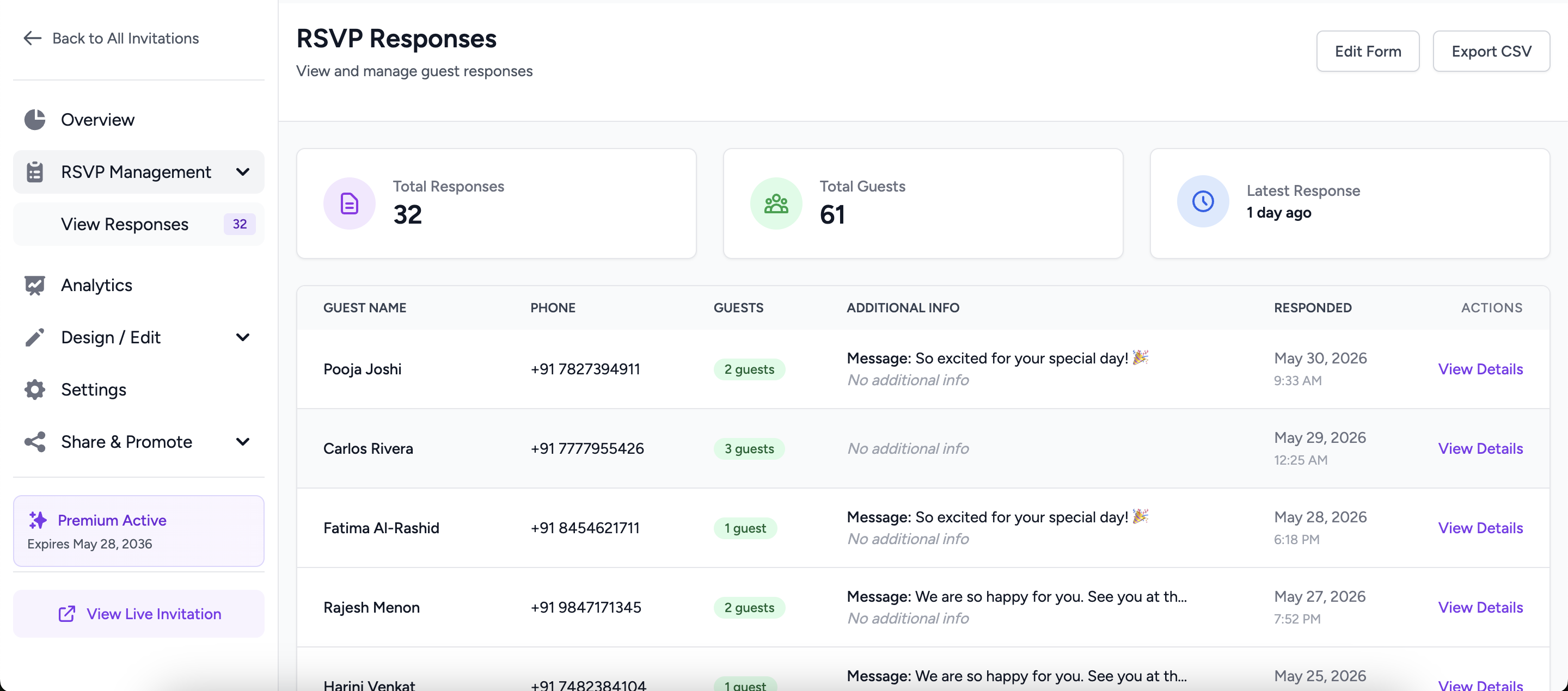
Reading the responses table
Each row in the table represents one RSVP submission. The columns are:
| Column | What it shows |
|---|---|
| Guest Name | The name the guest entered in the RSVP form |
| Phone | Their phone number (if collected) |
| Guests | How many people they're bringing (shown as a green badge) |
| Additional Info | Custom field answers, meal preferences, or a message — truncated in the table |
| Responded | Date and time of submission (in your invitation timezone) |
Viewing full response details
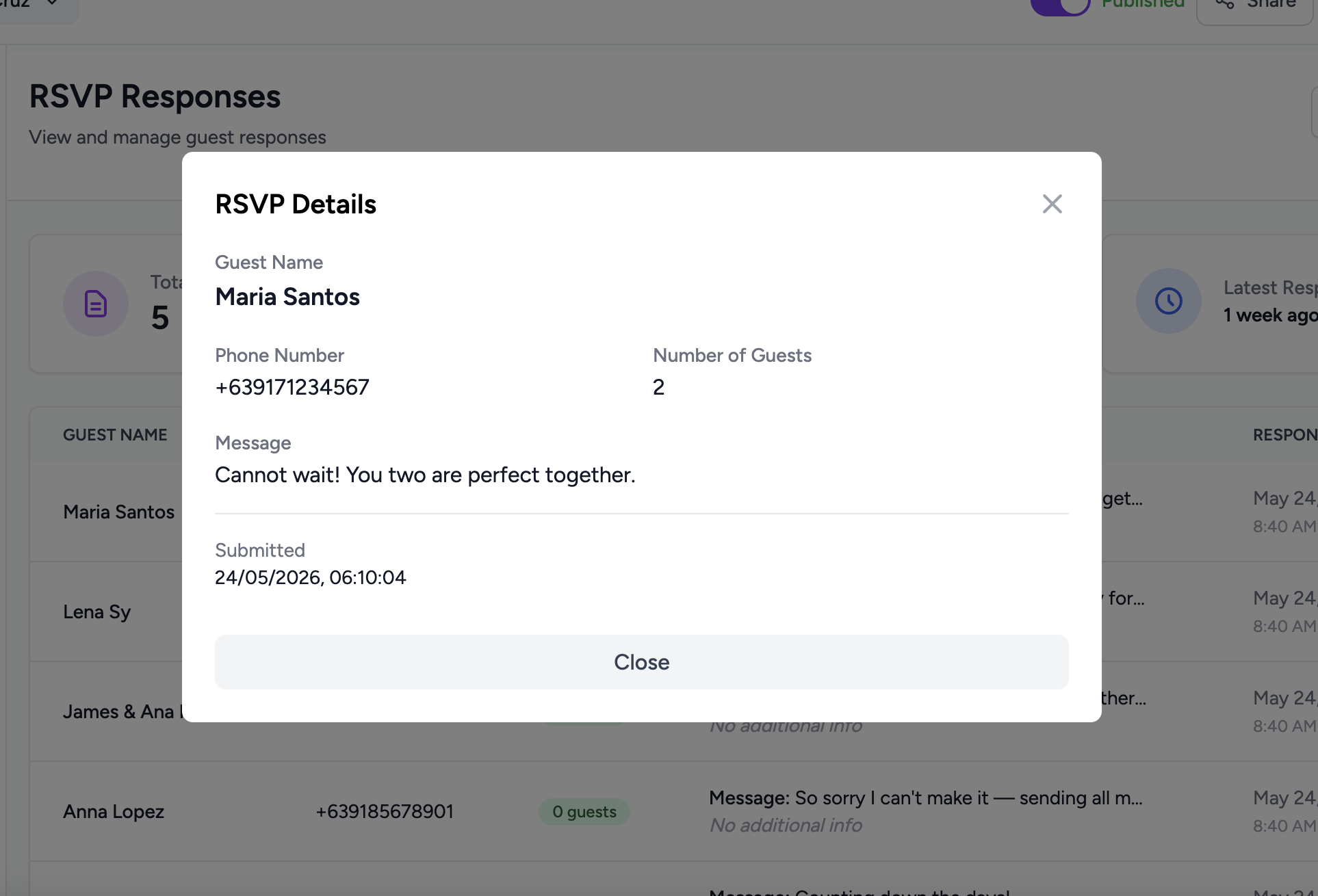
Click View Details on any row to open the details modal. It shows:
- Guest name, phone number, and total guest count
- Any message the guest included
- All custom RSVP form field answers (e.g., meal preference, song request)
- Exact submission timestamp and IP address
Exporting to CSV
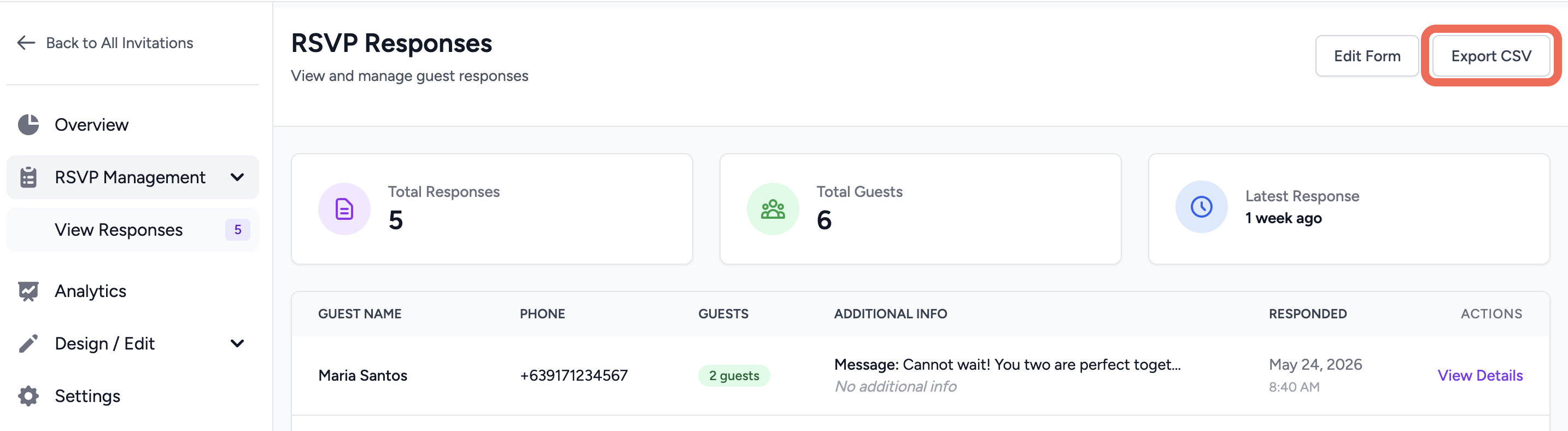
Click the Export CSV button in the top-right header. Your browser downloads a spreadsheet containing all RSVP responses. Open it in Excel, Google Sheets, or any spreadsheet app.
The CSV includes all table columns plus custom form field answers. Share it with your caterer, decorator, or venue manager so they have the exact headcount and dietary requirements they need.
Want to collect more information from guests?
Use the RSVP Form Builder to add custom questions — meal preferences, song requests, and more.