How to Delete an Invitation
Permanently remove an invitation and all its data. This cannot be undone — export your guest list first.
⚠️ This action is permanent
Deleting an invitation removes all RSVP responses, photos, events, and analytics. There is no way to recover this data once deleted.
Before you delete — export your guest list
If you have RSVP responses you'd like to keep, download them first: go to RSVP Responses in the invitation sidebar, then click Export CSV. This gives you a spreadsheet of all guest responses that you can save locally.
See How to View and Export RSVP Responses for step-by-step instructions.
Step 1 — Open Settings
Go to your invitation dashboard and click Settings in the left sidebar.
Step 2 — Scroll to the Danger Zone
Scroll to the bottom of the Settings page to find the Danger Zone section, marked with a red border. This is where destructive actions live.
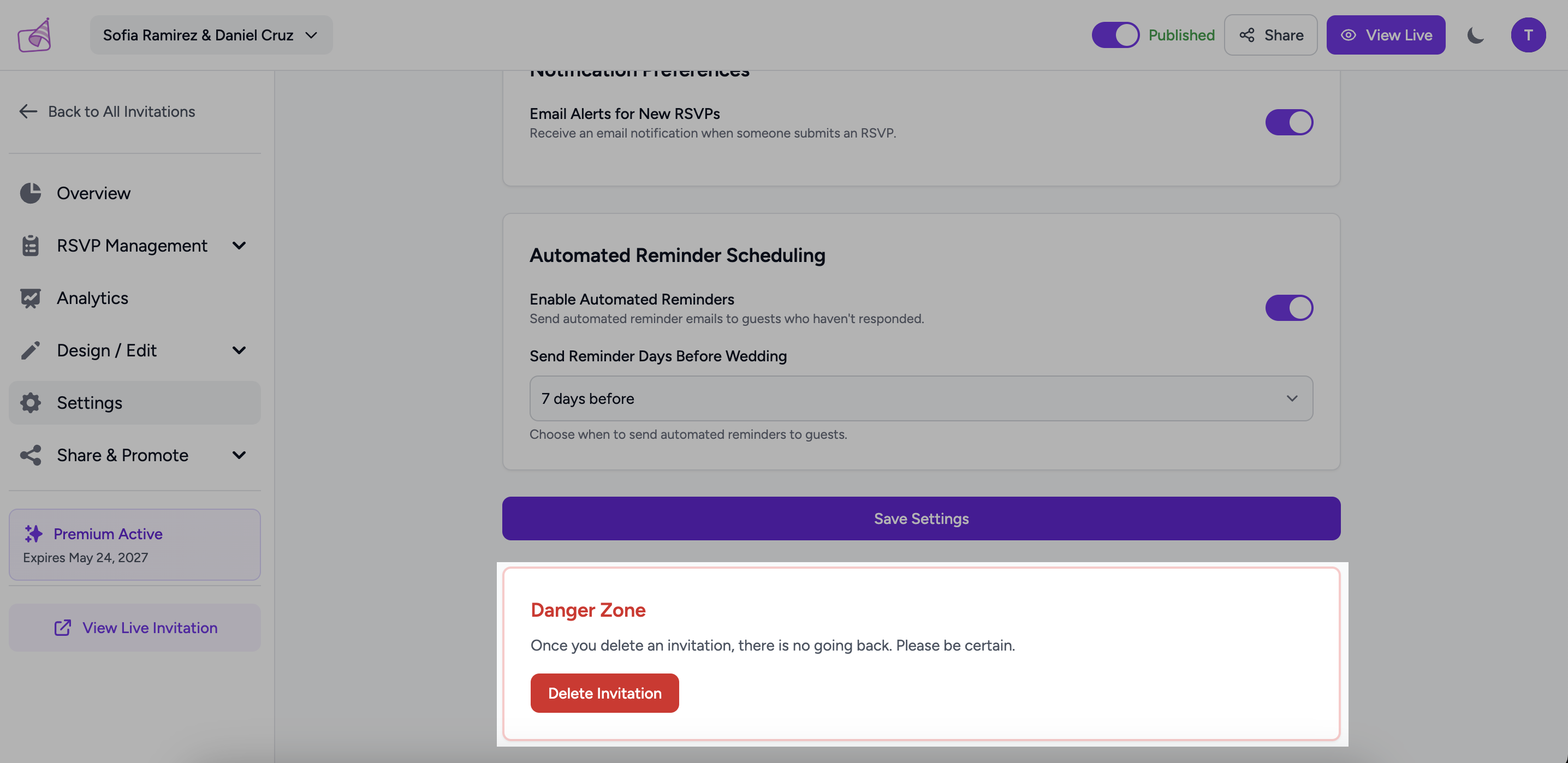
Step 3 — Click "Delete Invitation"
Click the red Delete Invitation button. A confirmation modal opens listing exactly what will be permanently deleted:
- All RSVP responses
- All photos and media
- All events and timeline entries
- All analytics and view data
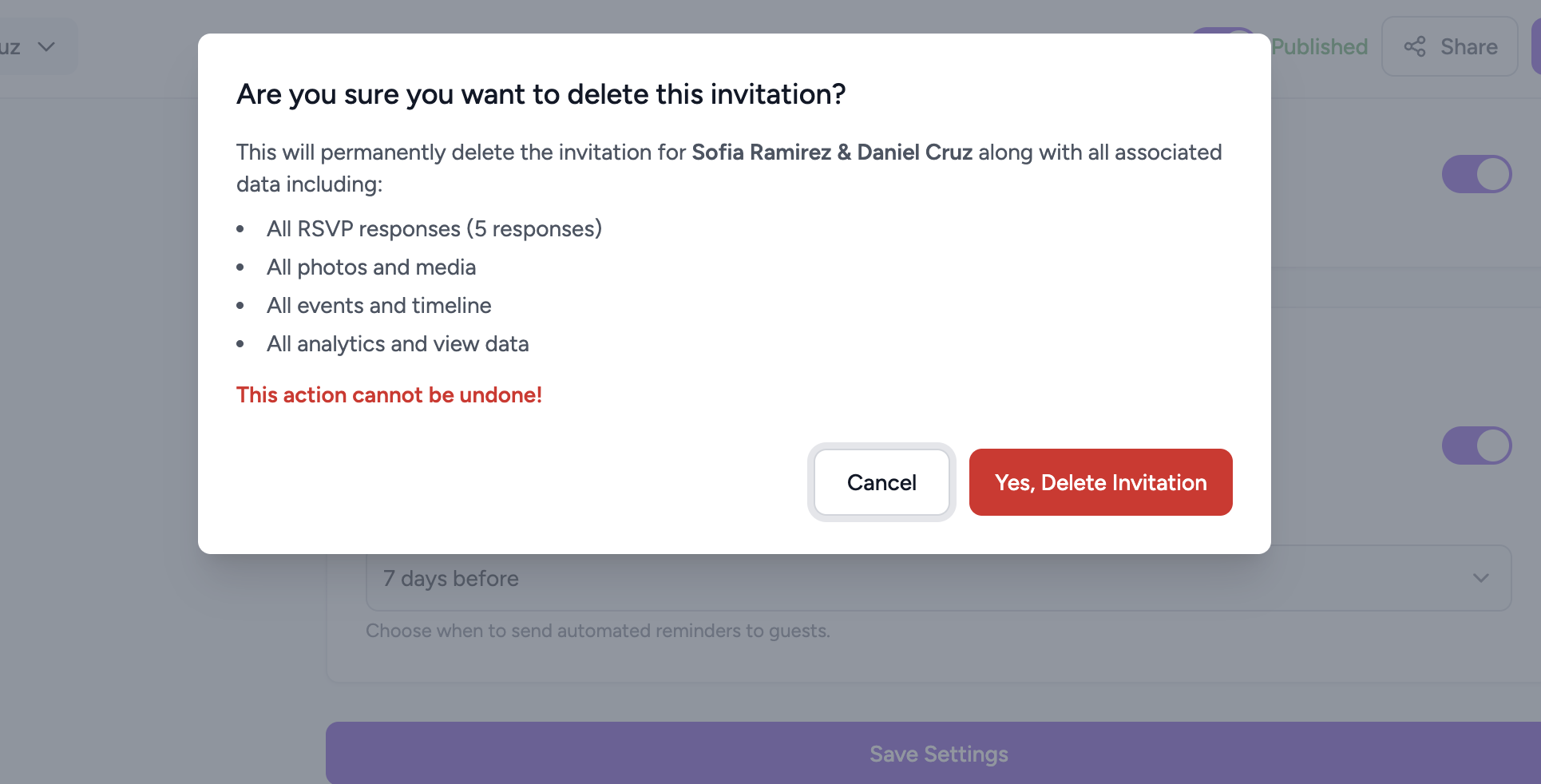
Step 4 — Confirm the deletion
Click Yes, Delete Invitation in the modal to permanently delete. The invitation and all its data will be removed immediately. You will be redirected to your dashboard.
Just want to take it offline?
Instead of deleting, you can set your invitation to Draft — guests won't be able to see it, but all your data is preserved. Look for the Publish / Draft toggle on the Overview page.
Back to Getting Started →