How to Manage Wedding RSVPs Online
No spreadsheets, no phone calls — all your responses in one place.
New to the term? RSVP just means "please respond" — it's how guests confirm whether they're coming.
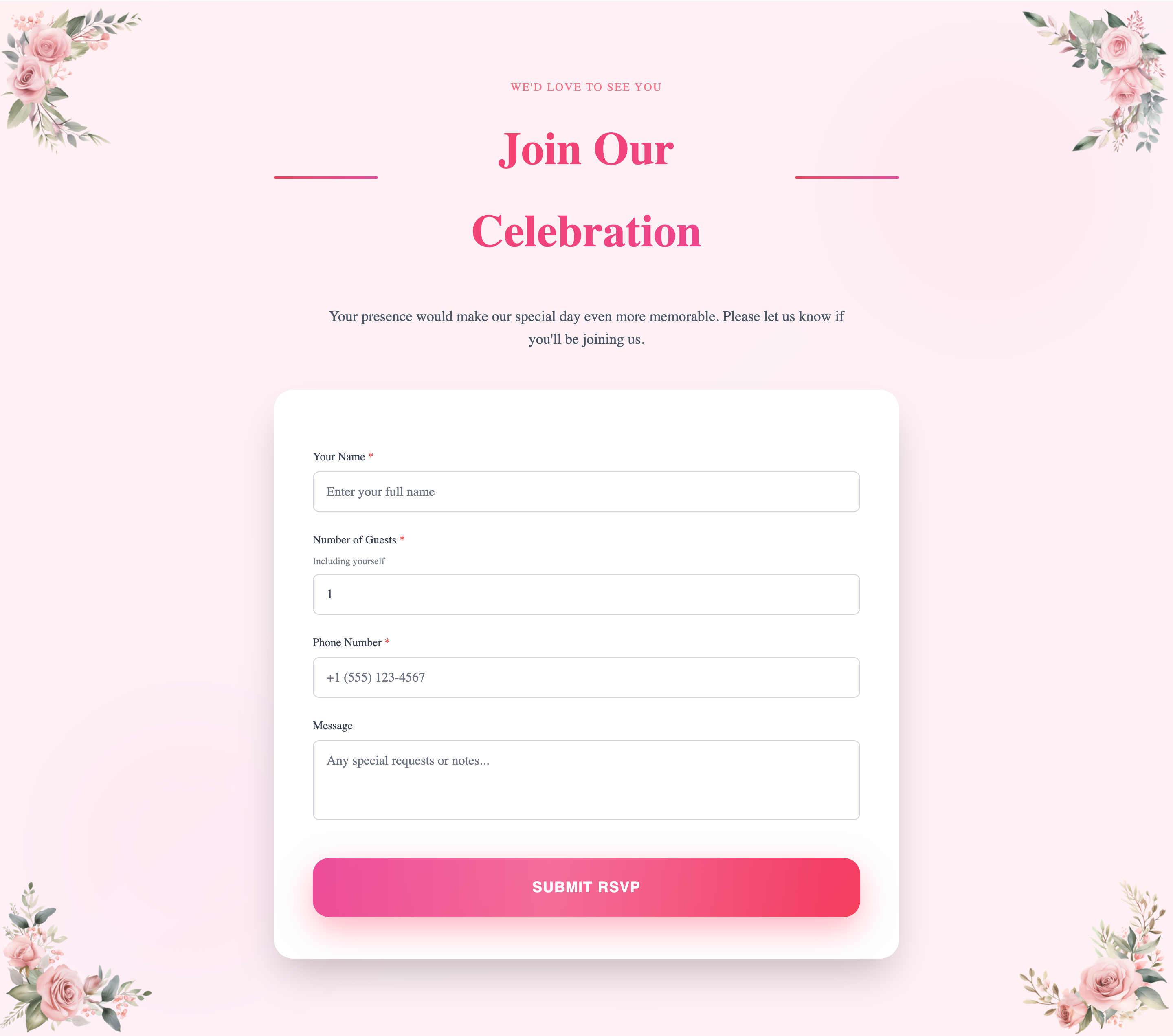
What your guests see
At the bottom of your invitation, guests will find an RSVP form. They enter their name, phone number, how many people are attending, and submit — that's it. No account required, works on any phone or browser. You get an email notification the moment someone RSVPs.
View all responses
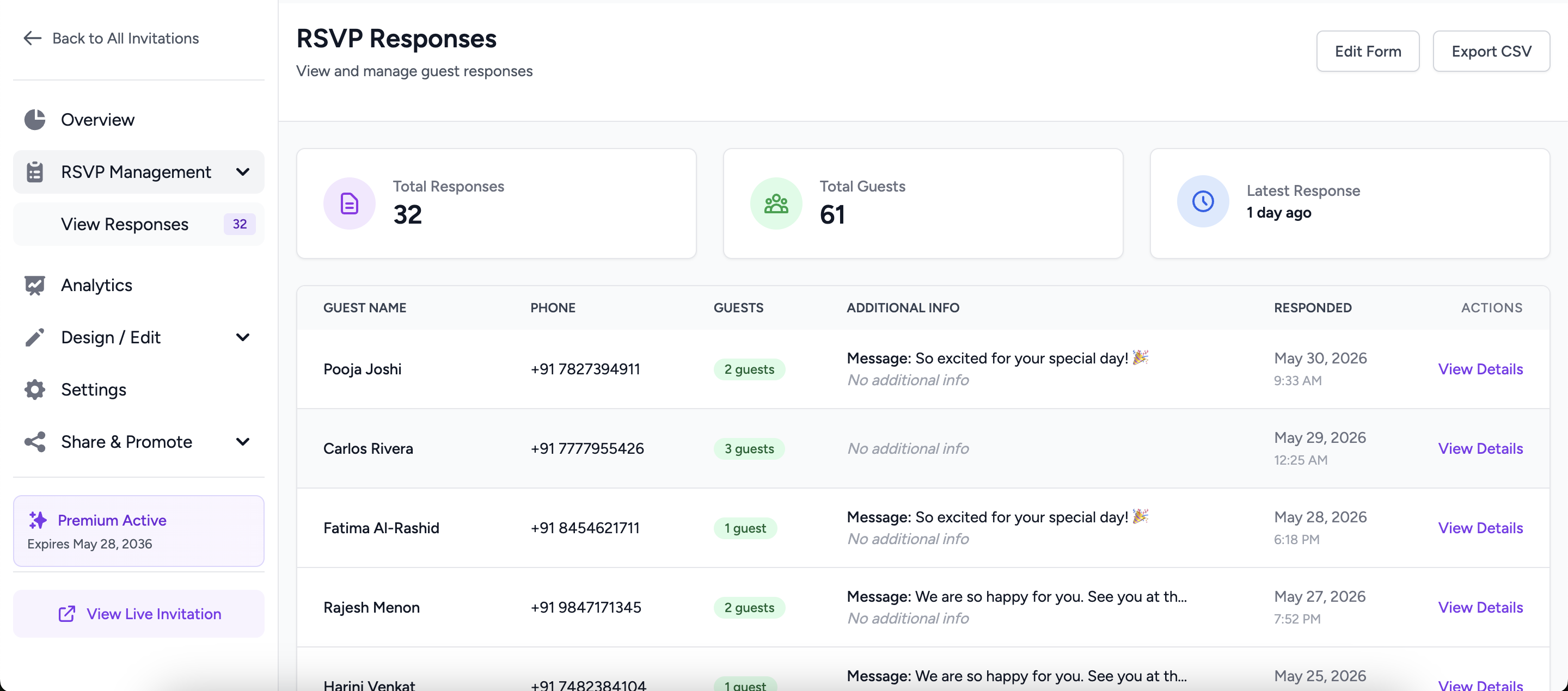
From your invitation dashboard, click RSVP Responses in the left sidebar (or in the Quick Actions section on your Overview page). You'll see:
- Guest name and phone number
- Number of attendees they confirmed
- Date & time of their response
- Total headcount at the top
Export to CSV
Click Export CSV on the RSVP Responses page to download a spreadsheet of all responses. Share it with your caterer, event manager, or venue — they'll have the exact headcount they need.
Set an RSVP deadline
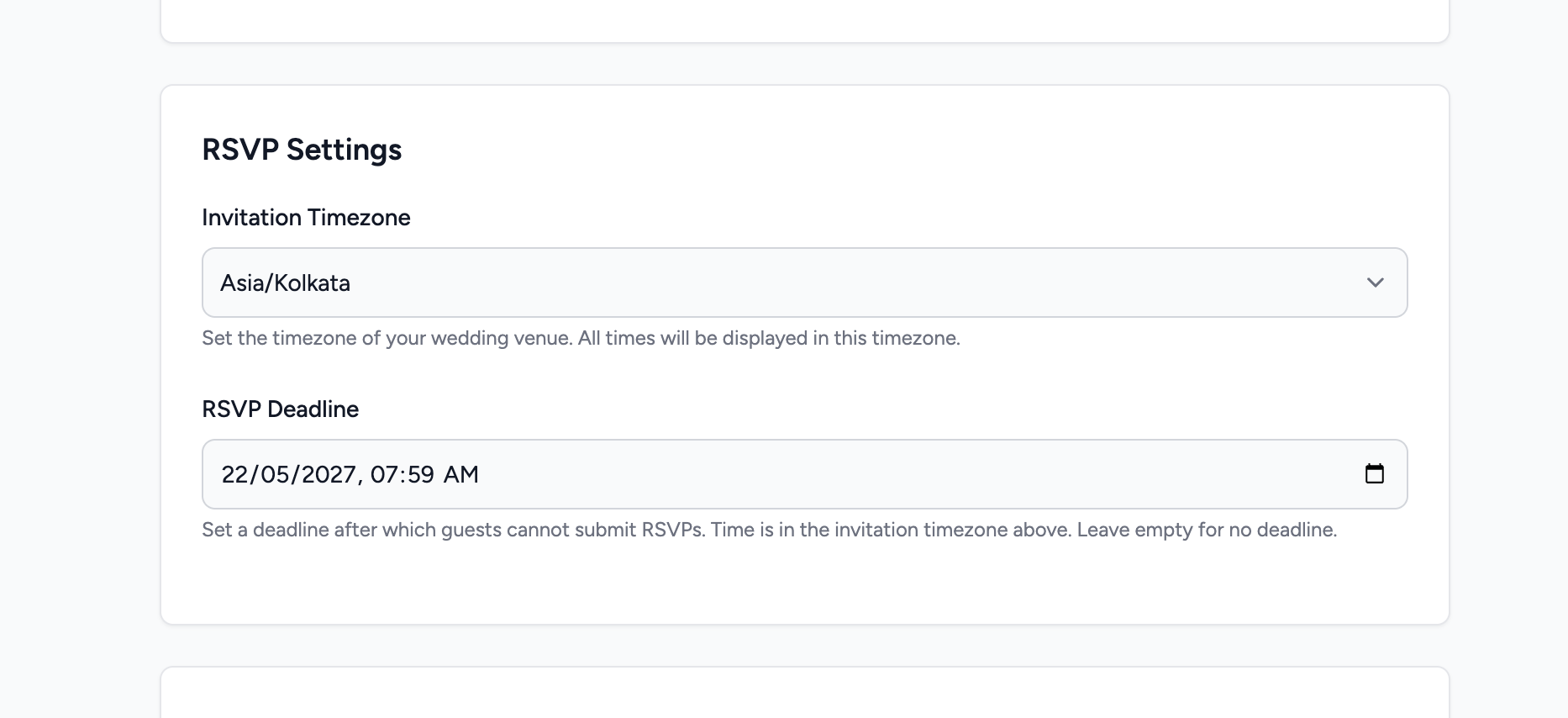
Go to Settings in your invitation sidebar. Under RSVP Settings you can set a deadline date — after that date, the RSVP form automatically closes and guests see a "RSVP period has ended" message instead. Useful if your caterer needs a final count by a specific day.
Enable or disable the RSVP form
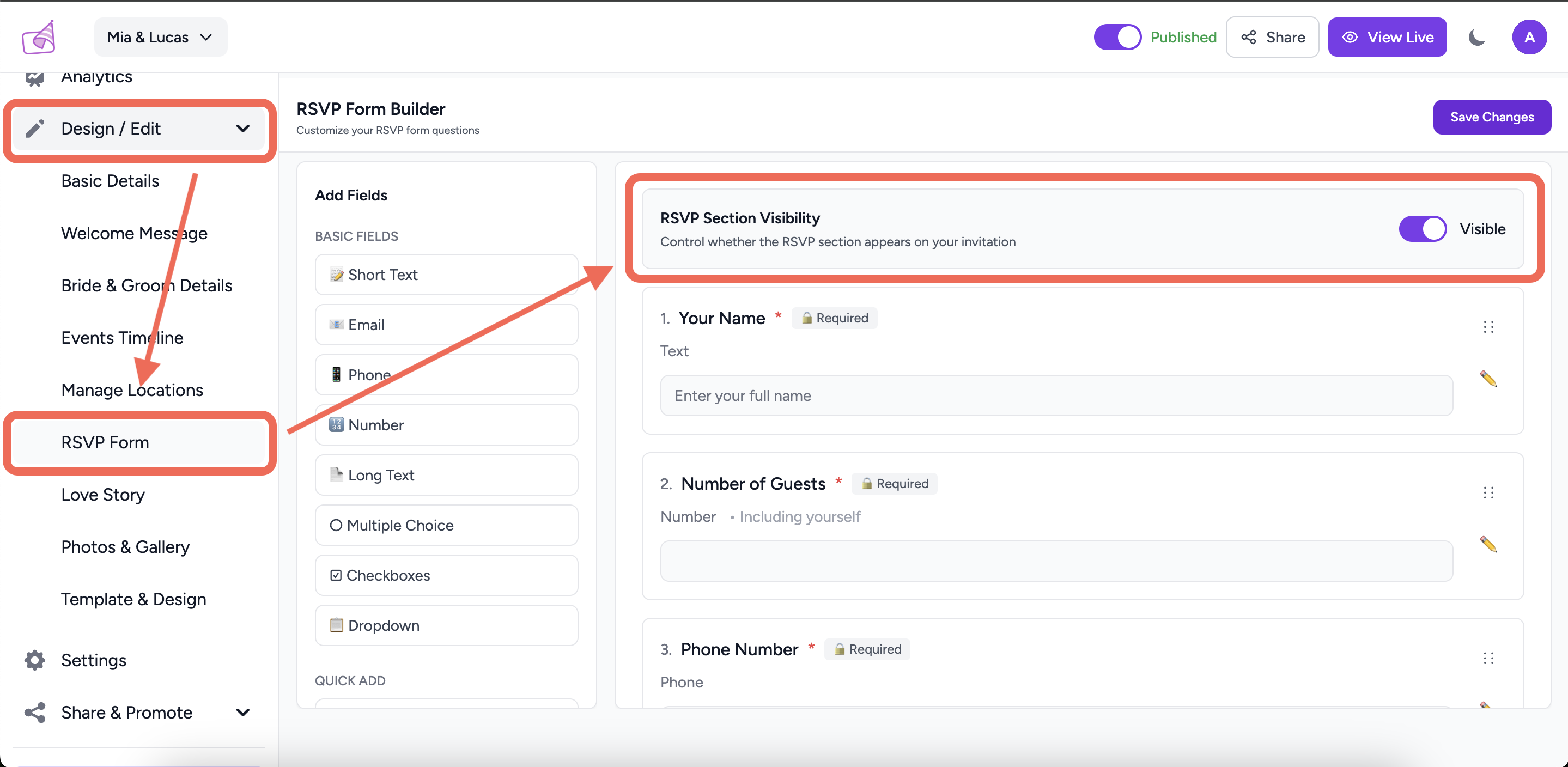
In the RSVP Form Builder, use the RSVP Section Visibility toggle at the top to turn the form on or off entirely. Turn it off if you've already confirmed all your guests and don't want new responses coming in.
Get email notifications
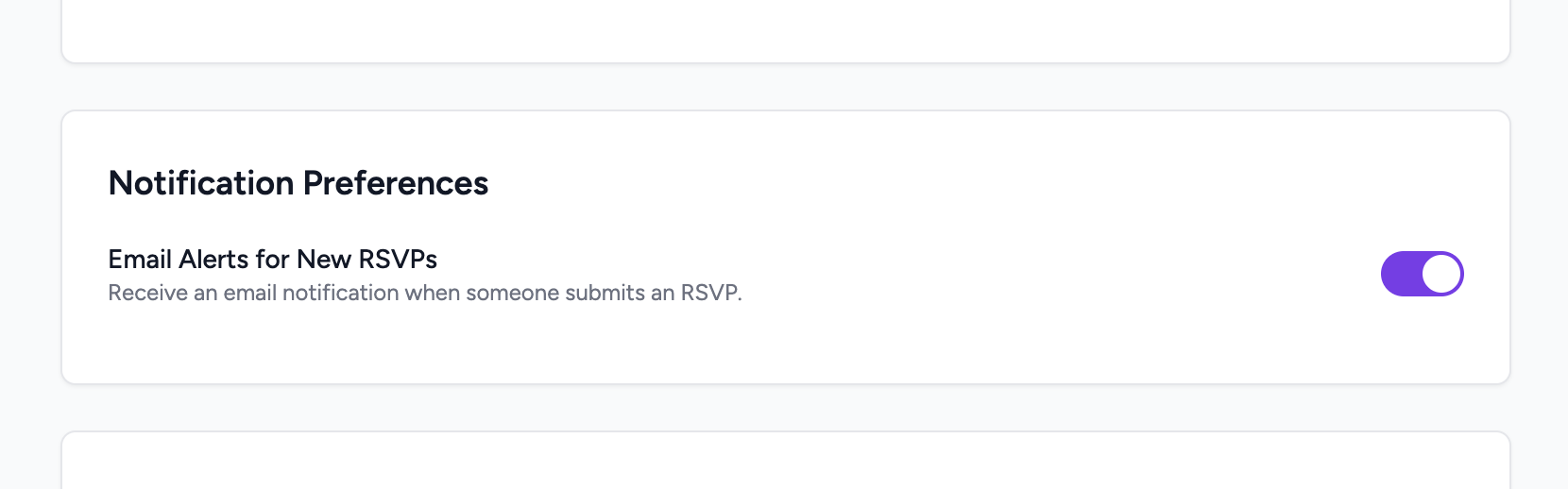
In Settings → Notification Preferences, turn on Email Alerts for New RSVPs. You'll receive an email every time a guest submits their RSVP — so you're always up to date, even if you're not checking the dashboard.
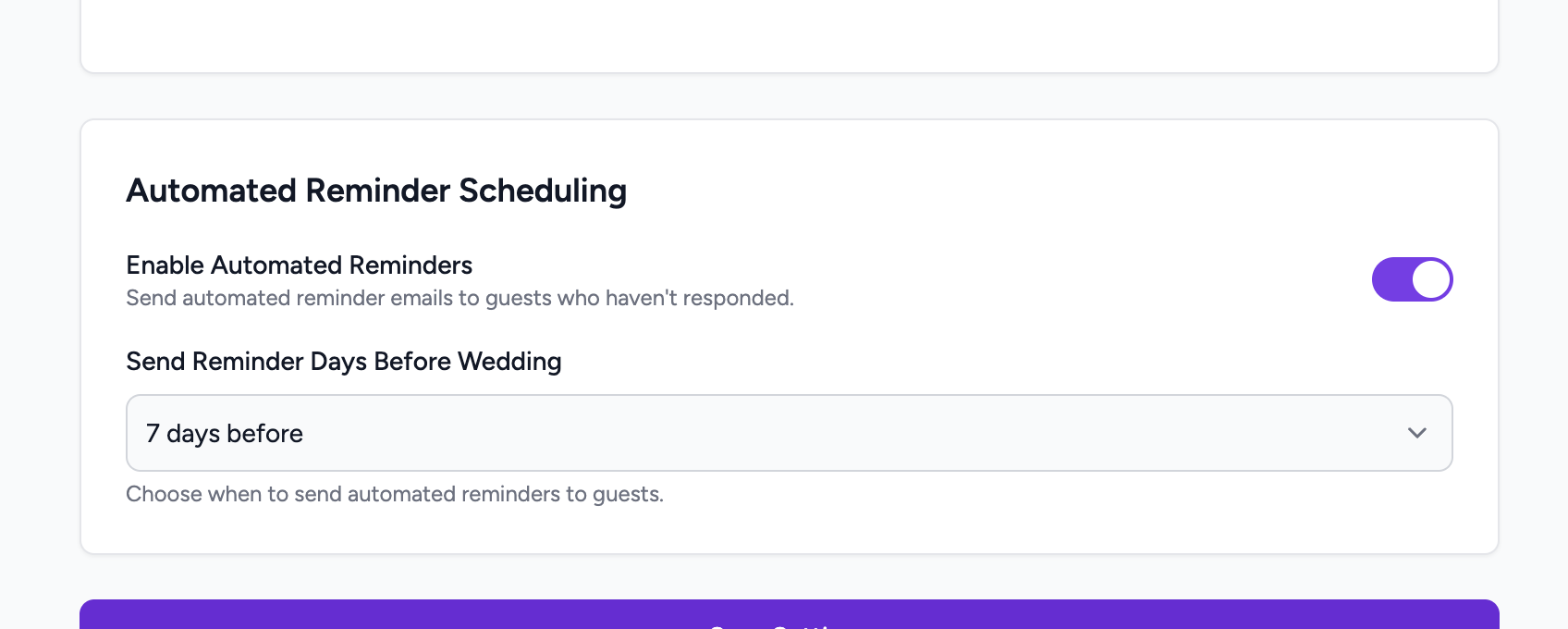
Automated reminders to guests
You can configure automated reminder emails to send to guests who have RSVPed. Set how many days before the wedding to send the reminder from Settings → Automated Reminder Scheduling.